Why it matters
Multi-Factor Authentication (MFA) using Duo adds a second layer of protection to your SUU account, so even if your password is ever stolen or guessed, it's much harder for someone else to log in as you.
Before You Begin: Install the Duo Mobile App
Install Duo Mobile on your phone before enrolling to confirm your device is supported. Duo Mobile requires iOS 17 or newer or Android 12 or newer.
- iPhone/iPad: Duo Mobile on the App Store
- Android: Duo Mobile on Google Play
App won't install? Your phone or its operating system isn't supported. You can purchase a Duo hardware token from the SUU Campus Store and follow Hardware Token Setup below, or update your phone's operating system (or upgrade your phone) and try again.
Access Self-Enrollment Page
- Open your web browser of choice (Google Chrome, Firefox, Safari, etc.)
- In the address bar, enter the following URL: my.suu.edu/accounts/duo
- If you are not currently logged in to the mySUU portal, you will need to log in
Mobile Phone Setup (Android/iOS)
- Select Manage Phones
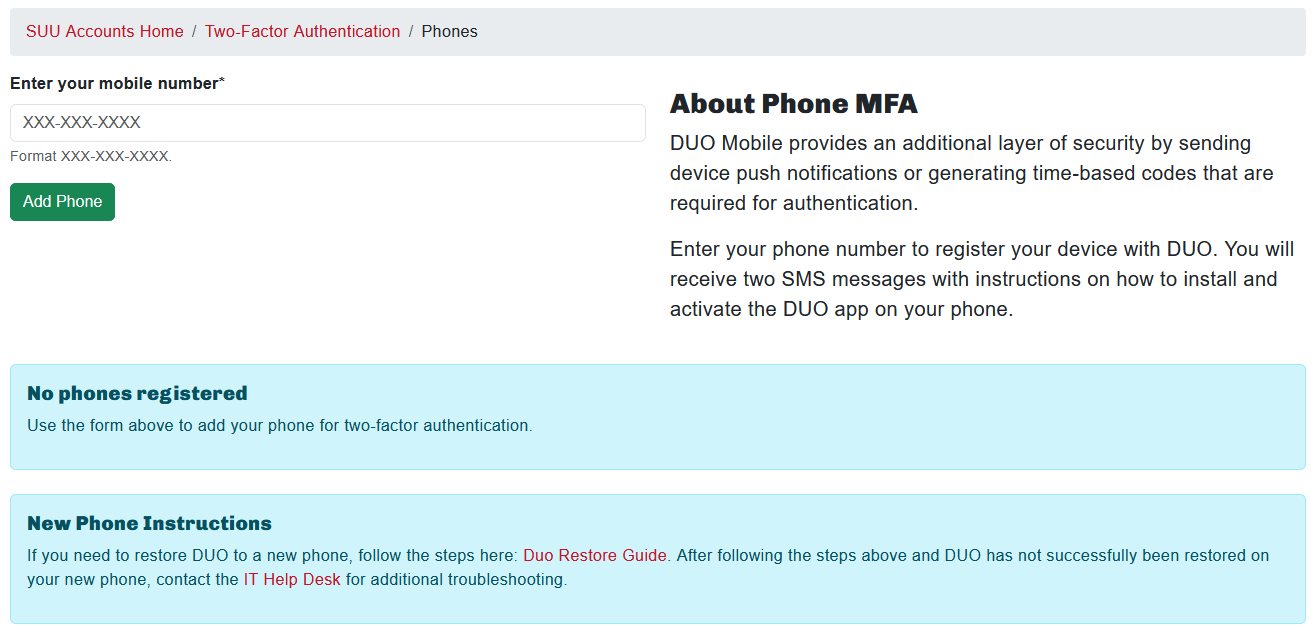
- In the text box, enter your phone number in the requested format
(XXX-XXX-XXXX)and select Add Phone- This will send two text messages to your phone:
- A link to download the Duo Mobile app (you can skip this if you already installed it)
- A link to activate your device and account
- This will send two text messages to your phone:
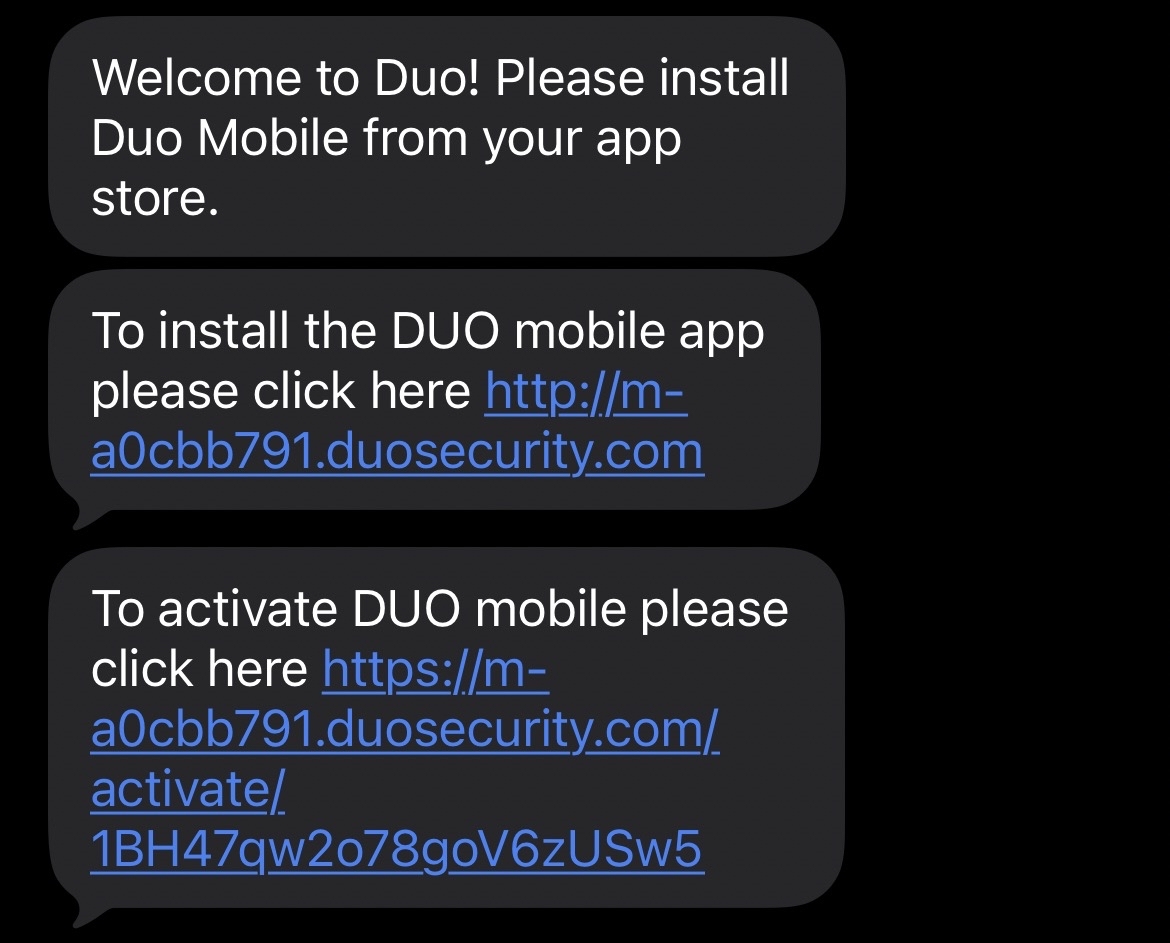
If you haven't already installed Duo Mobile, follow the first link to download it
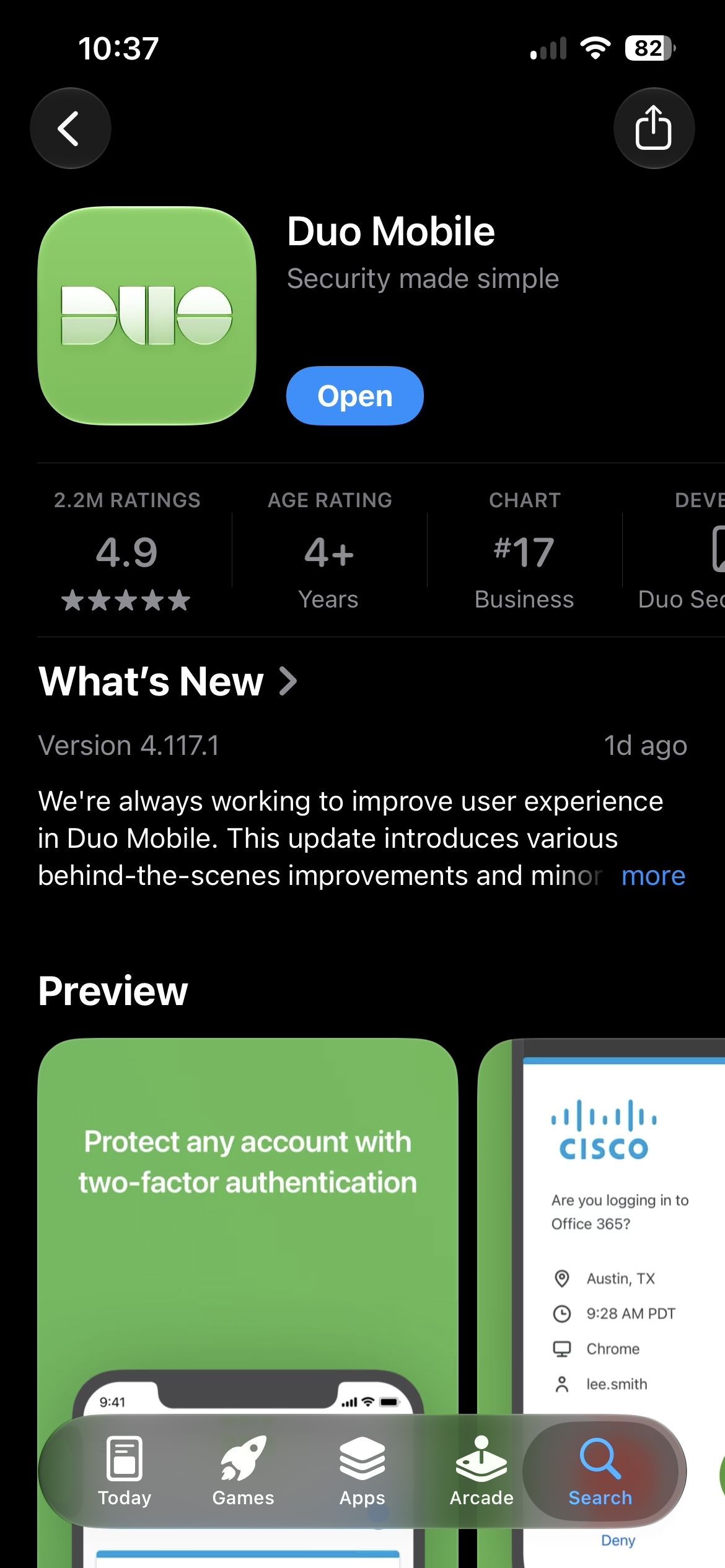
- Follow the second link and select Open in Duo Mobile app if the app does not automatically open
Name the account in Duo (this can be anything you want to help you remember it is associated with SUU)
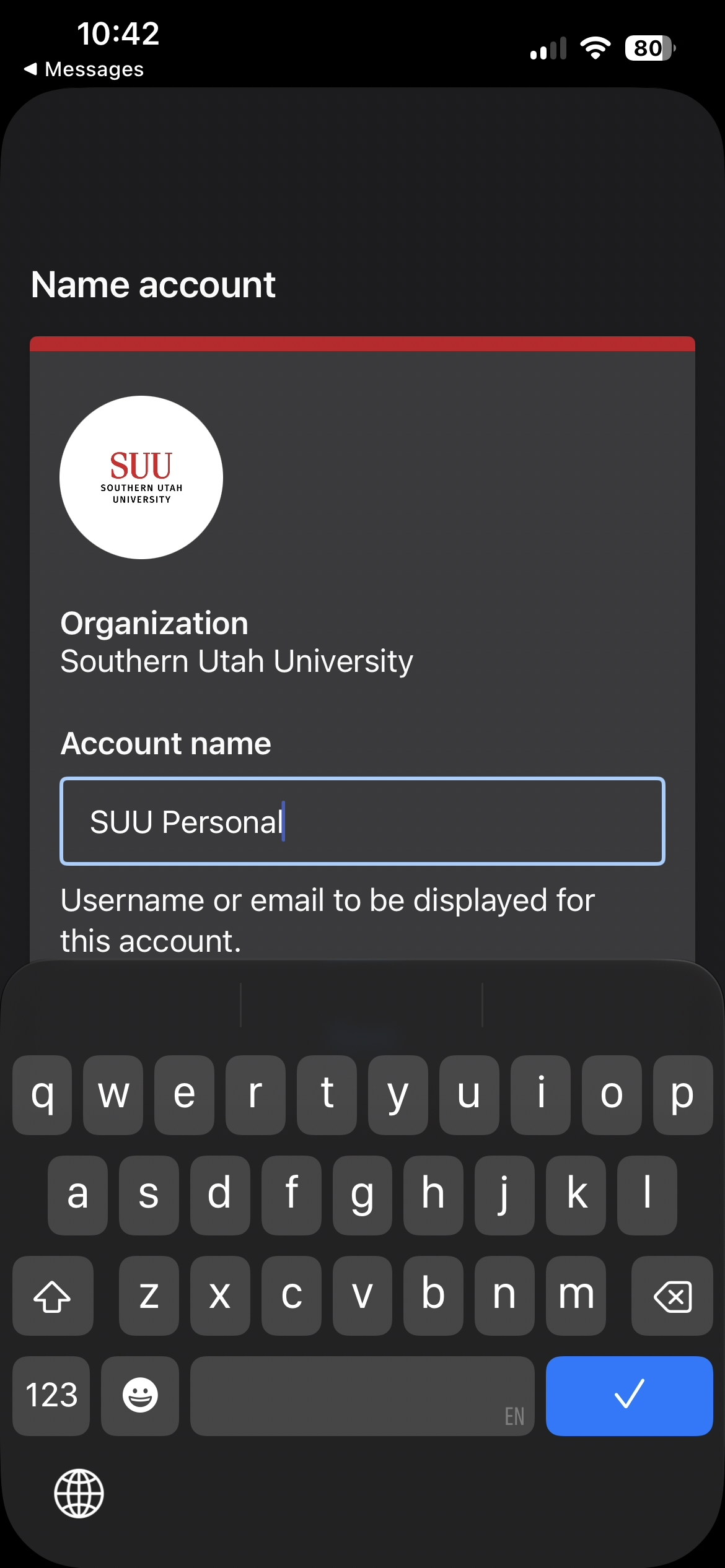
- The mobile device is now set up for use with Duo
Hardware Token Setup
- Don't have a token yet? Purchase one from the SUU Campus Store
- Select Manage Tokens
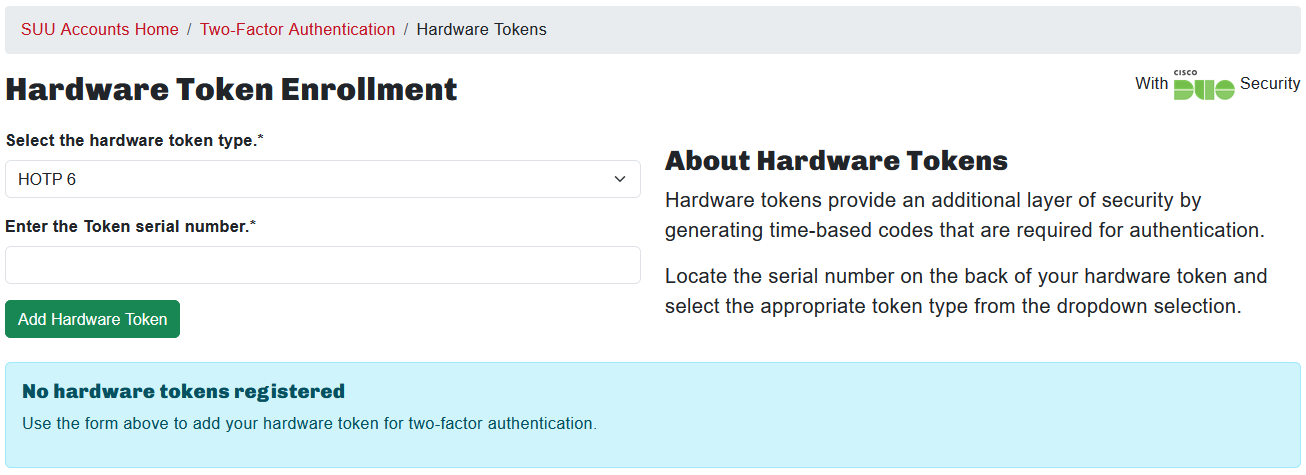
- Enter the Serial Number of the token in the text box and select Add Hardware Token
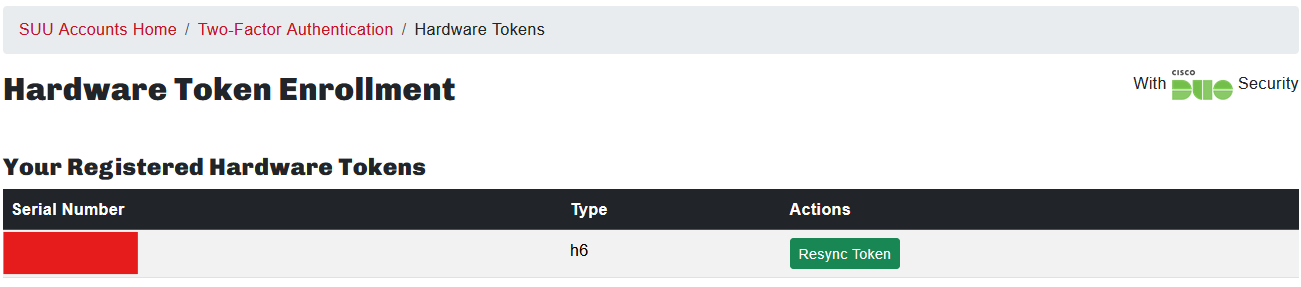
- The hardware token is now set up for use with Duo